How to Fix "Wi-Fi Connected But No Internet" on Windows, Mac, Android & iPhone
Few things are more frustrating than seeing your device connected to Wi-Fi, only to find out you can't actually browse the internet. That dreaded "Connected, no internet" message has haunted just about everyone at some point. The good news? It's almost always fixable — and usually faster than you'd think.
In this guide, we'll walk through 12 proven methods to fix the "Wi-Fi connected but no internet" problem across Windows, macOS, Android, and iPhone. Whether the issue is with your router, your device, or your ISP, we've got you covered.
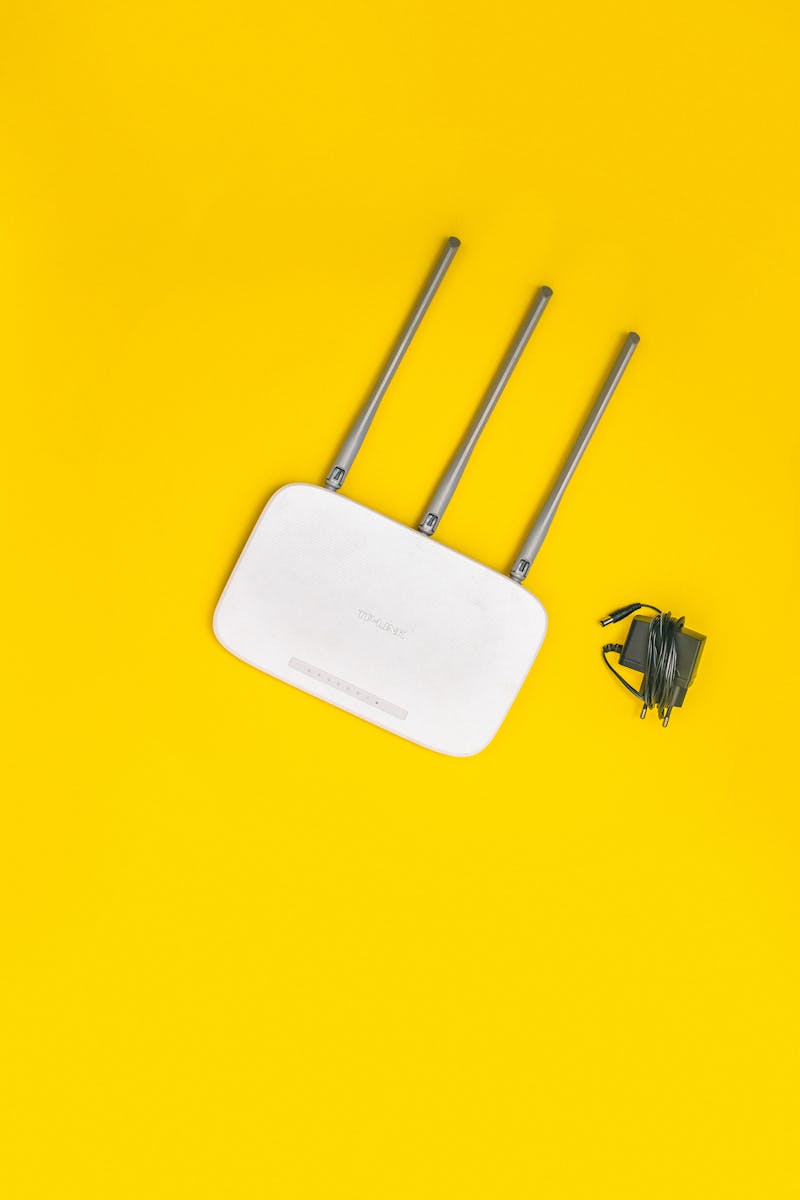
Photo by Pexels
Why Does This Happen?
Before jumping into fixes, it helps to understand what's going on. When your device says "connected" to Wi-Fi, it means it has successfully joined the local network. But "internet access" requires your router to successfully communicate with your ISP's servers. The disconnect can happen at several points:
- Router-side issues: Your router might have lost its connection to the ISP modem
- DNS failures: Your device can't resolve domain names into IP addresses
- IP conflicts: Two devices sharing the same IP address on your network
- Firewall or security software: Blocking outbound connections
- ISP outage: Your internet provider might simply be down
Now, let's fix it step by step.
1. Restart Your Router and Modem (The Classic Fix)
Yes, we know — "have you tried turning it off and on again?" But there's a reason this is always Step 1. Routers accumulate memory leaks, cached errors, and stale connections over time. A fresh reboot clears all of that.
How to do it right:
- Unplug your modem first, then your router (if they're separate devices)
- Wait a full 30 seconds — not 10, not 15
- Plug the modem back in and wait until all indicator lights stabilize
- Then plug in the router and wait another 1-2 minutes
- Try connecting again
This alone fixes the problem in roughly 50% of cases. If you have a combo modem/router unit from your ISP, just unplug that single device and wait 30 seconds.
2. Toggle Airplane Mode On and Off
This is the quickest fix on phones and laptops. Airplane mode resets all wireless radios — Wi-Fi, Bluetooth, cellular — giving your device a clean reconnect.
On iPhone/Android: Swipe down from the top of the screen (or up on older iPhones), tap the airplane icon, wait 10 seconds, then tap it again.
On Windows: Click the network icon in the taskbar, then toggle Airplane mode on, wait, then off.
On Mac: While macOS doesn't have a traditional airplane mode, you can turn Wi-Fi off and back on from the menu bar.
3. Forget and Reconnect to the Wi-Fi Network
Sometimes your device holds onto corrupted network credentials or settings. Forgetting the network and rejoining fresh can clear these issues.
Windows 11: Settings → Network & Internet → Wi-Fi → Manage known networks → Select your network → Forget
macOS: System Settings → Wi-Fi → Click the "i" next to your network → Forget This Network
Android: Settings → Network & Internet → Wi-Fi → Long-press your network → Forget
iPhone: Settings → Wi-Fi → Tap the "i" next to your network → Forget This Network
After forgetting, reconnect by selecting the network and entering the password again. If you're also dealing with DNS errors, this step often resolves both issues at once.
4. Run the Built-In Network Troubleshooter (Windows)
Windows has a surprisingly decent built-in network diagnostic tool. It won't fix everything, but it can automatically resolve common configuration problems.
Windows 11:
- Go to Settings → System → Troubleshoot → Other troubleshooters
- Click Run next to "Internet Connections"
- Follow the prompts and apply any suggested fixes
Windows 10:
- Right-click the Wi-Fi icon in the taskbar
- Select "Troubleshoot problems"
- Let the wizard run and apply fixes
5. Flush DNS Cache and Reset Network Settings
A corrupted DNS cache is one of the most common culprits behind "connected but no internet" issues. Flushing it forces your device to fetch fresh DNS records.
On Windows: Open Command Prompt as Administrator and run these commands one by one:
ipconfig /flushdns
ipconfig /release
ipconfig /renew
netsh winsock reset
netsh int ip reset
Restart your PC after running these commands.
On macOS: Open Terminal and run:
sudo dscacheutil -flushcache
sudo killall -HUP mDNSResponder
On Android: Settings → System → Reset options → Reset Wi-Fi, mobile & Bluetooth
On iPhone: Settings → General → Transfer or Reset iPhone → Reset → Reset Network Settings
Note: Resetting network settings on phones will erase all saved Wi-Fi passwords, so have them handy before proceeding.
6. Switch to a Different DNS Server
Your ISP's default DNS servers can be slow, unreliable, or even go down entirely. Switching to a public DNS like Google or Cloudflare often solves connectivity issues instantly. If you've been having recurring DNS server issues, this is a permanent fix worth making.
Recommended DNS servers:
- Google DNS: 8.8.8.8 and 8.8.4.4
- Cloudflare DNS: 1.1.1.1 and 1.0.0.1
- OpenDNS: 208.67.222.222 and 208.67.220.220
How to change DNS on Windows 11:
- Settings → Network & Internet → Wi-Fi → Your network → Hardware properties
- Click Edit next to DNS server assignment
- Switch to Manual, toggle IPv4 on
- Enter your preferred DNS addresses
- Click Save
On macOS: System Settings → Wi-Fi → Details (on your network) → DNS → Add your preferred servers
On iPhone: Settings → Wi-Fi → Tap "i" next to your network → Configure DNS → Manual → Add servers
7. Check for IP Address Conflicts
If two devices on your network accidentally get assigned the same IP address, neither will have proper internet access. This happens more often than you'd think, especially on busy home networks.
Quick fix:
- Open Command Prompt (Windows) or Terminal (Mac)
- Type
ipconfig(Windows) orifconfig(Mac) and note your IP address - If it starts with 169.254.x.x, your device failed to get a valid IP from the router — that's the problem
- Try:
ipconfig /releasethenipconfig /renewon Windows - Or restart your router to force it to reassign IPs to all devices
8. Disable VPN and Proxy Settings
VPN apps and proxy configurations can interfere with your internet connection, especially if the VPN server is down or misconfigured.
Try this:
- Disconnect from any active VPN
- On Windows: Settings → Network & Internet → Proxy → Make sure "Use a proxy server" is off
- On Mac: System Settings → Wi-Fi → Details → Proxies → Make sure nothing is checked
- On phones: Check if any VPN app is running in the background
If internet works after disabling the VPN, the issue is with your VPN service, not your Wi-Fi. To stay protected while browsing, you might want to explore reputable cybersecurity tools and practices that don't interfere with your connection stability.
9. Update or Reinstall Network Drivers (Windows)
Outdated or corrupted network adapter drivers are a common cause of Wi-Fi issues on Windows PCs. This is especially true after a major Windows update.
Update drivers:
- Press Win + X → Device Manager
- Expand Network adapters
- Right-click your Wi-Fi adapter → Update driver
- Select "Search automatically for drivers"
Reinstall drivers (if updating doesn't work):
- In Device Manager, right-click your Wi-Fi adapter → Uninstall device
- Check "Attempt to remove the driver for this device"
- Click Uninstall
- Restart your PC — Windows will automatically reinstall the default driver
If your Bluetooth is also acting up alongside Wi-Fi, the issue might be a shared wireless chipset driver that needs attention.
10. Check Your Router's Admin Panel
Sometimes the problem is in your router's configuration. Accessing the admin panel can reveal issues and let you fix them directly.
How to access your router:
- Open a browser and go to 192.168.1.1 or 192.168.0.1 (check your router's label for the exact address)
- Log in with admin credentials (default is often admin/admin or printed on the router)
- Look for the WAN or Internet status section
Things to check:
- WAN status: Does it show "Connected"? If not, the problem is between your router and ISP
- Connected devices: Too many devices can overload a basic router
- MAC filtering: Make sure your device isn't accidentally blocked
- Firmware updates: Update your router firmware if available
- DHCP settings: Make sure DHCP is enabled so devices get IP addresses automatically
11. Temporarily Disable Firewall and Antivirus
Overly aggressive security software can block internet access. This is especially common with third-party antivirus programs that include their own firewall.
Windows:
- Search for "Windows Security" → Firewall & network protection
- Click your active network and toggle Microsoft Defender Firewall off temporarily
- Test your internet connection
- Important: Turn it back on after testing!
If the internet works with the firewall off, add an exception for your browser or reconfigure the firewall rules rather than leaving it disabled.
12. Contact Your ISP (When All Else Fails)
If none of the above solutions work, the problem might be on your ISP's end. Before calling, do a quick check:
- Visit downdetector.com (on your phone's cellular data) and search for your ISP
- Check if the modem lights look abnormal (flashing red, no "Online" light, etc.)
- Ask a neighbor on the same ISP if they're having issues
When you call your ISP, mention that you've already tried restarting equipment, flushing DNS, and resetting network settings. This usually gets you past the basic scripted troubleshooting and to someone who can actually check your line.
Bonus: Prevent It from Happening Again
Once you've fixed the issue, here are a few habits to keep your connection stable:
- Restart your router weekly — set a schedule on a smart plug if you want to automate it
- Keep router firmware updated — most modern routers have auto-update options
- Use a static DNS — set Google DNS or Cloudflare DNS as your default
- Position your router centrally — avoid corners, closets, and spots near microwaves or other electronics
- Limit connected devices — if your router supports it, set up a guest network for IoT devices
Wrapping Up
The "Wi-Fi connected but no internet" problem is incredibly common but almost always solvable without calling a technician. Start with the simple fixes — restarting your router, toggling airplane mode, forgetting and reconnecting to the network. If those don't work, move on to DNS flushing, driver updates, and router admin checks.
In most cases, you'll be back online within 10-15 minutes. And if you keep running into the issue, switching to a better DNS server and keeping your router firmware updated are two small changes that make a huge long-term difference.
Got a Wi-Fi trick that's worked for you? Drop it in the comments — we'd love to hear it!
Written by Fanny Engriana


Comments
Post a Comment